


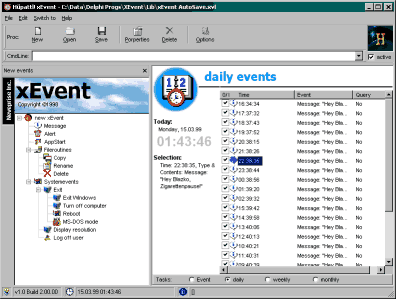
| xEvent xEvent allows you to start specified tasks at a given time. This can simply be a reminding message as well as backing up files or shutting Windows down. So take a look on this page! |
|
| 1) Introduction Probably you are downloading a large file from
the internet, but you gotta leave home. So what now, when
you are away and the download has ended, the machine's
still online. The time has come for xEvent: start it and
tell that Windows has to shut down in half an our. |
||
|
||
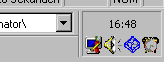
| 2) How it works You, the user, specify the tasks to perform (see 3) and close xEvent. Then it adds itself to the systemtray just next to the clock (fig. 2). When activeted in the options, xEvent loads on every system's start and opens the library containing the tasks. You can always reach xEvent by right-clicking the icon in the tray. |
||
|
||
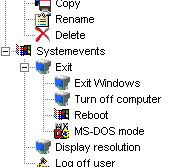
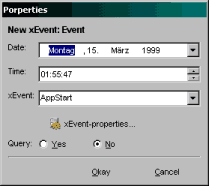
| 3) Telling what to do On xEvent's left you can see several kinds of
events (fig. 3). By double-clicking one, you will get an
event-editor (fig. 5) where you can set it's properties.
When done, it is added to a list containing all events,
grouped in daily, weekly, monthly and single events (fig.
4).
|
|||||||||||||||
|
|||||||||||||||
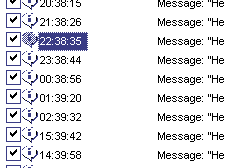
| 4) BQuestion of identity At any given time, you can en-/disable an event. Additionally, you have the possibility to convert a task to another type. As shown in fig. 5, you can call an event's properties and manipulate time, kind and content. |
||
|
5) Features & Requirements
| -runs on Windows 98 or Win95 + IE4 | - handles several types of event (see above) | |
| -Pentium 166 or equal recommended | - tasks can be disabled at any time | |
| -needs approx. 2 megs (app) of free space | - dynamic property editor | |
| - runs in the system tray | ||
| - autostart-feature |