 Hüpattl! Software
Stuped
A stupid editor with absolutely no IDE ambitions.
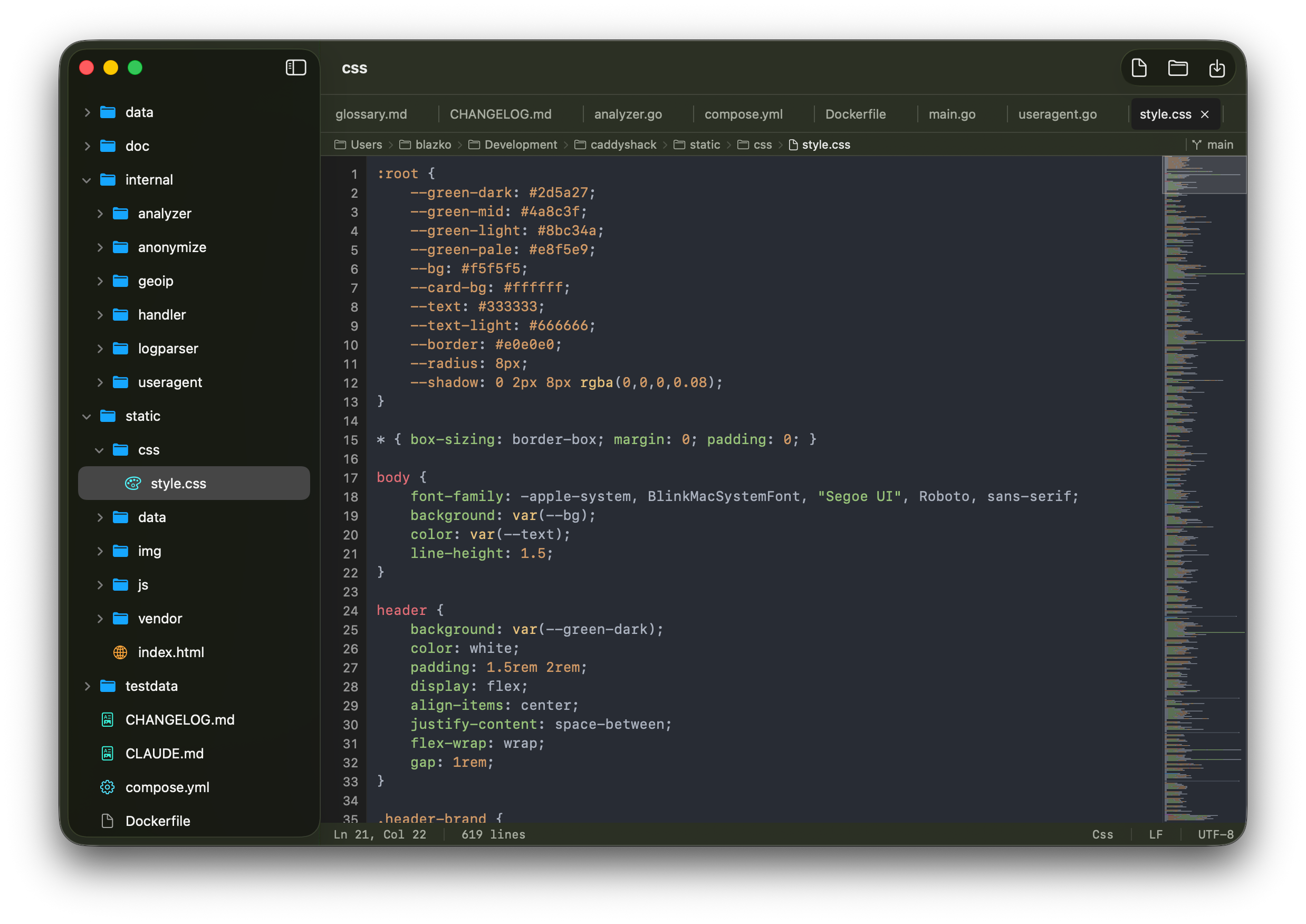
Stuped is a native code editor for macOS. It has syntax highlighting for more than 150 languages, a file tree, live Markdown preview with Mermaid diagrams, global search, a mini-map and image preview. It has no project model, no build system and no plugins.
Features
What Stuped does, and the shortcuts for it.
More than 150 languages
Syntax highlighting via highlight.js for more than 150 programming languages, with line numbers.
File tree
A sidebar with the folder's files. Folders load when opened, and changes on disk appear immediately via FSEvents.
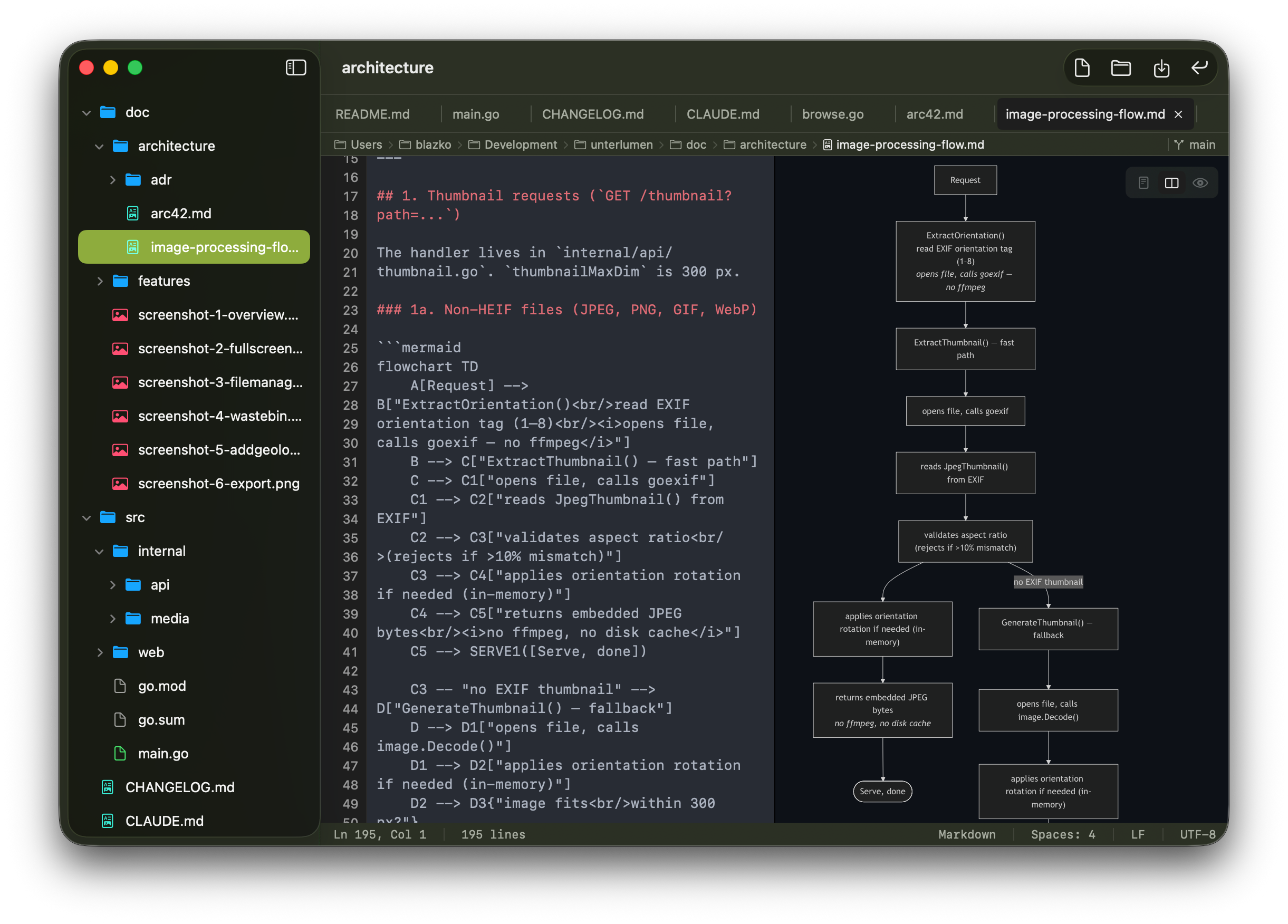
Markdown preview
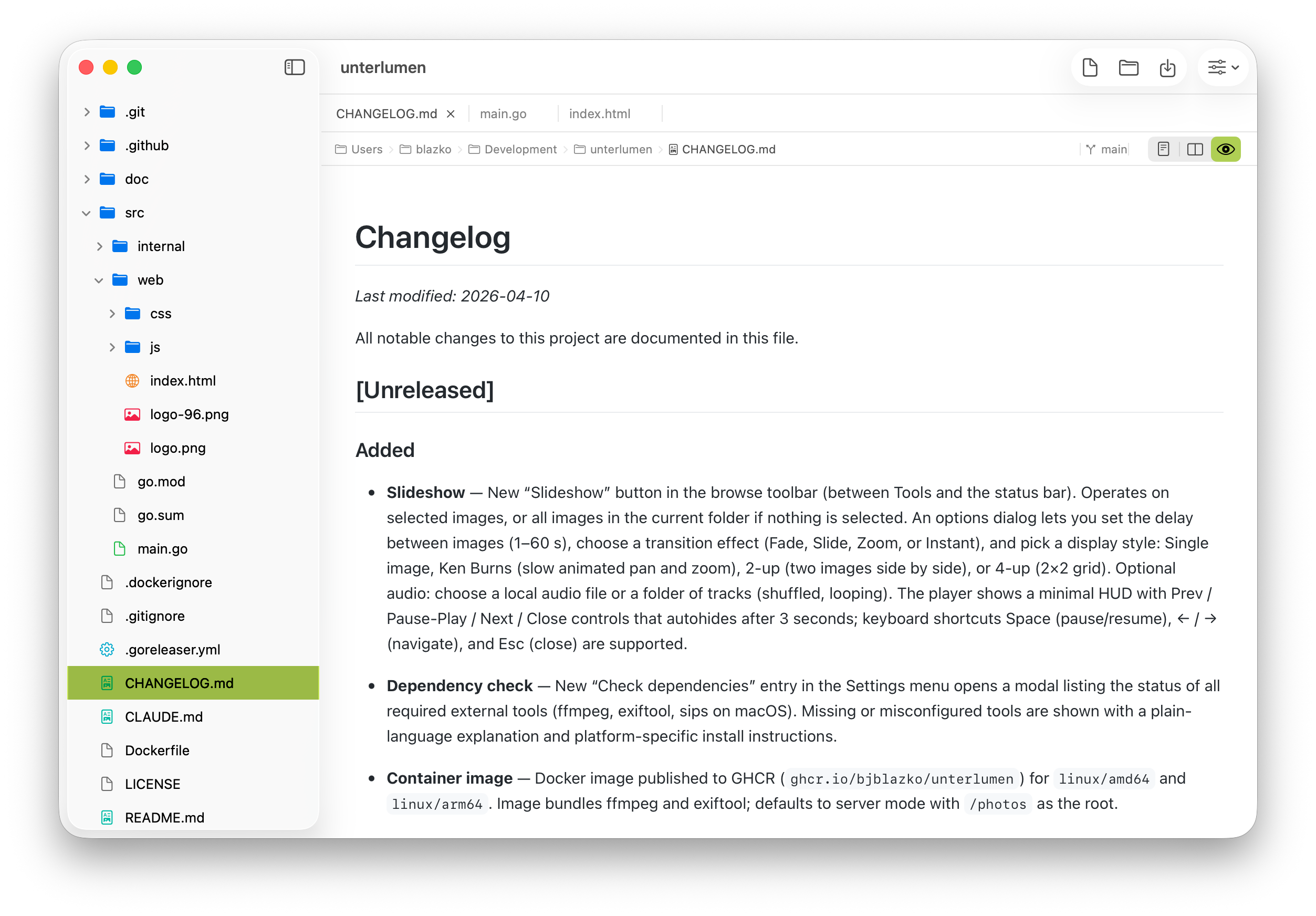
Renders GitHub-flavored Markdown next to the source as you type. Switch between editor, preview and both with ⌘1, ⌘2 and ⌘3.
Mermaid diagrams
Mermaid blocks in Markdown files are rendered as diagrams in the preview.
HTML preview
HTML files render in a built-in WebView next to the source.
Image preview
Opens PNG, JPEG, GIF, BMP, TIFF, WebP, HEIC and ICO files. Other binary files are detected and not opened as text.
Find in file
A find bar for the current file. Step through matches with the keyboard.
Git branch
Shows the current Git branch of the open folder.
Tabs
Open a single file or a whole folder, each file in a tab. Tabs with unsaved changes show a dot; right-click for more actions.
Mini-map
A scaled-down view of the file at the right edge of the editor. Click or drag to jump. Toggle with ⌘⇧M.
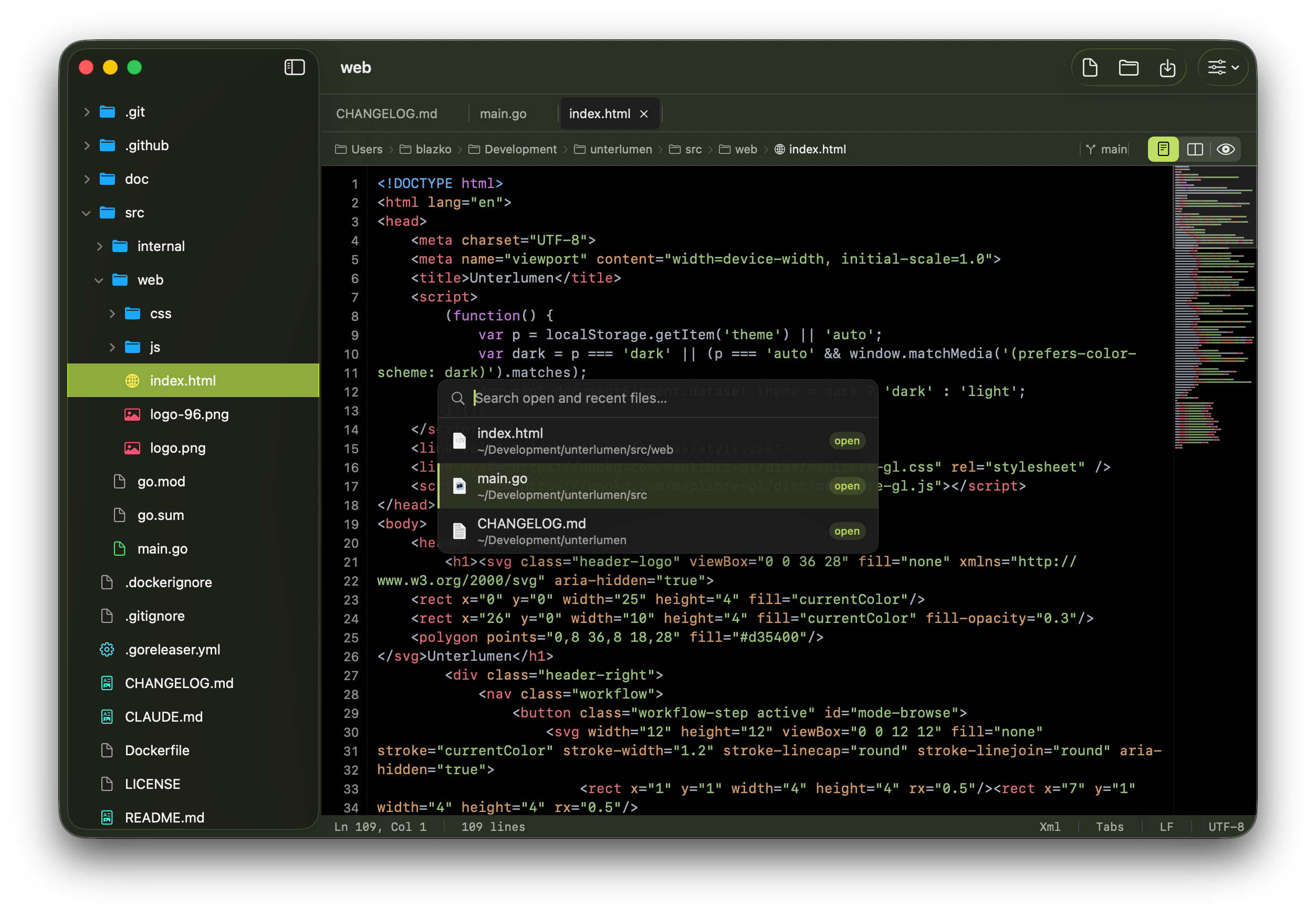
Recent files
⌘R lists recently opened files. Type to filter, use the arrow keys to select, press Enter to open.
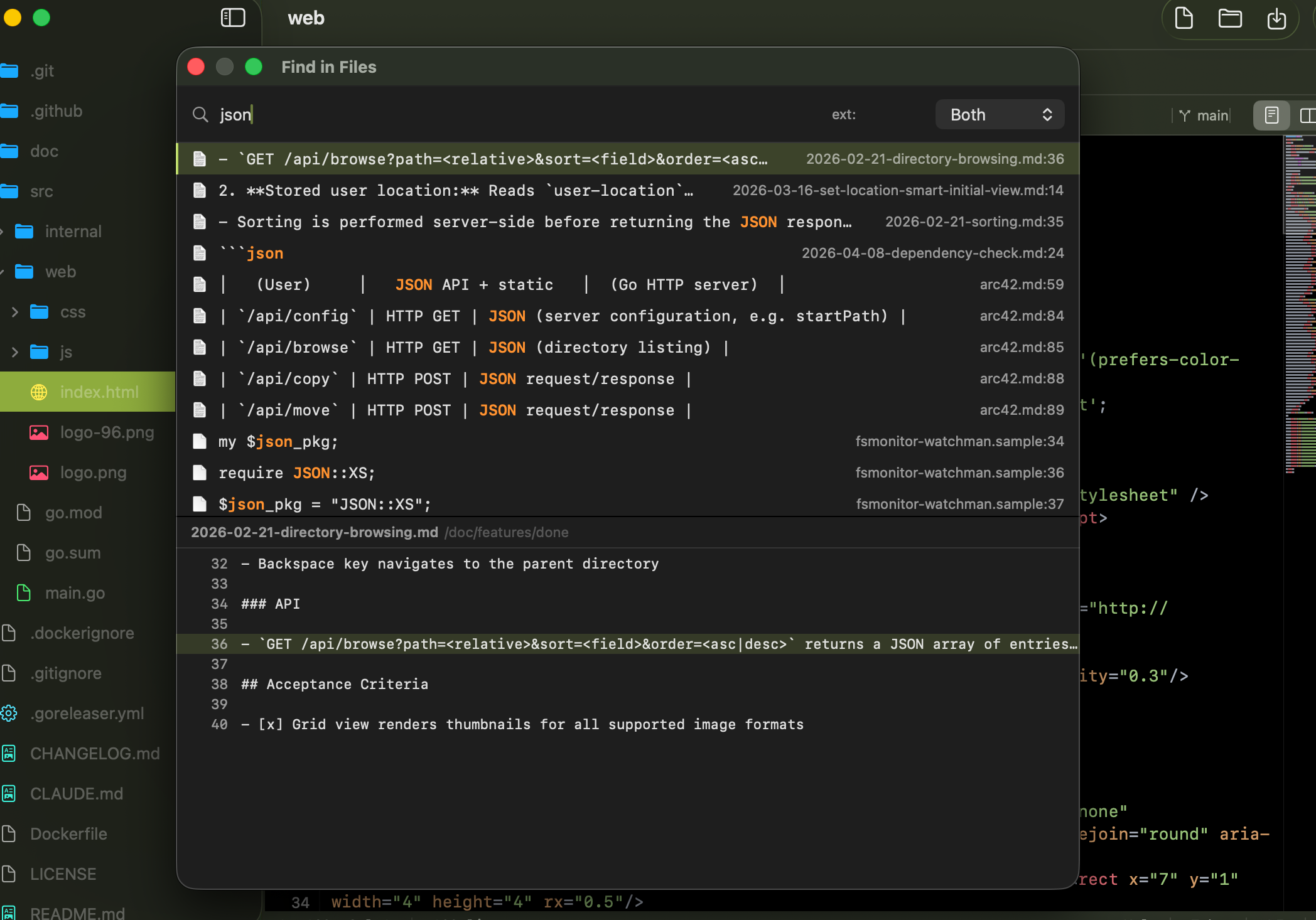
Search in folder
⌘⇧F searches all files in the open folder by name, content or both. Filter by extension with ext:. Results show the path and the matching line.
Reload on change
When another program changes an open file, Stuped reloads it from disk. Tabs with unsaved changes are left as they are.
Hidden files
Show or hide dot files and folders in the sidebar with ⌘⇧H. The setting is kept across launches.
Appearance
Choose Light, Dark or System in the View menu, independent of the macOS setting. The choice is kept across launches.
Fullscreen
The green window button switches to native macOS full screen.
Reveal in file tree
⌘⇧J, or the tab's context menu, shows the open file in the sidebar.
Screenshots
Editor, preview, recent files, search and light mode.
Install
Requires macOS 14.0 or later.
Use at your own risk. Back up your files first.