
review: Glimmer
source code editor
Glimmer, previously known as Code Commander, is an all-purpose editor, especially for software development and data editing. It supports syntax highlighting and IDE-like integration of compilers and debuggers.
1.0 about > top of page
Glimmer is the ultimate all-purpose editor for developers and admins. It is a welcome tool for editing configuration files, documentation files and source codes for almost any language. Additionally, a compiler, processor, interpreter or that can be bound into Glimmer to be invoked from this IDE (Integrated Development Environment).
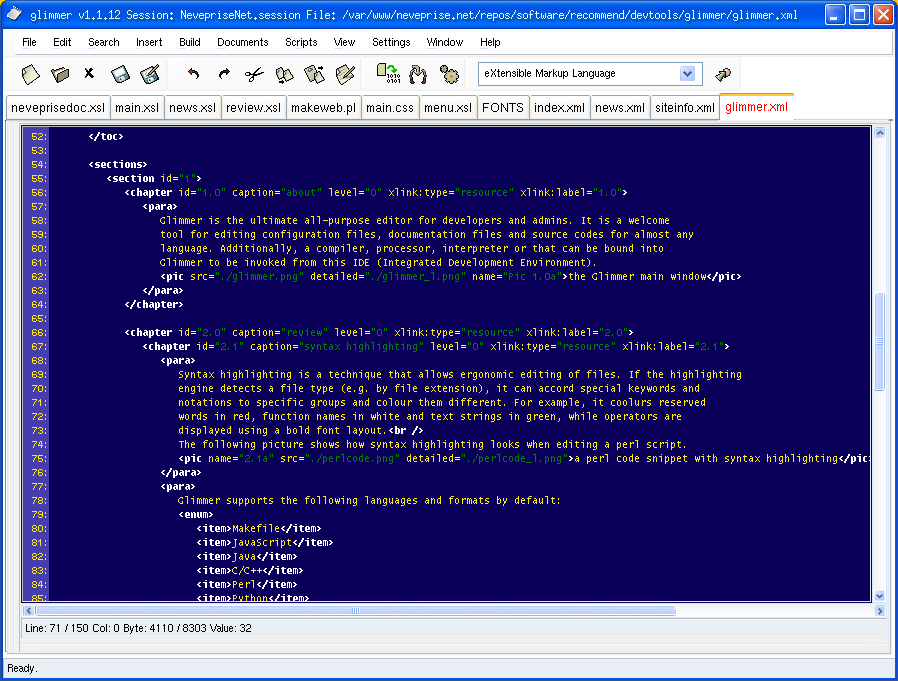
Pic 1.0a: the Glimmer main window (click to enlarge)
2.0 review > top of page
2.1 syntax highlighting > top of page
Syntax highlighting is a technique that allows ergonomic editing of files. If the highlighting engine detects a file type (e.g. by file extension), it can accord special keywords and notations to specific groups and colour them different. For example, it colours reserved words in red, function names in white and text strings in green, while operators are displayed using a bold font layout.
The following picture shows how syntax highlighting looks when editing a perl script.
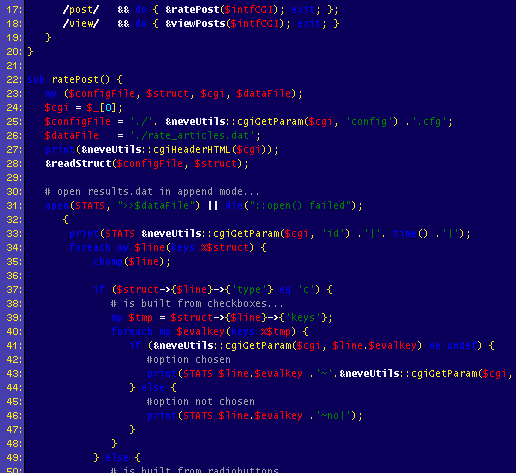
2.1a: a perl code snippet with syntax highlighting (click to enlarge)
Glimmer supports the following languages and formats by default:
- Makefile
- JavaScript
- Java
- C/C++
- Perl
- Python
- PHP
- HTML/XHTML
- WML
- XML
- SGML
- Fortran
- Scheme
- Ada
- Objective Caml
- Assembly
- SQL
- TeX/LaTeX
- TCL
- Bash/Sh
- Ada
...and some more. Glimmer does not have hard-coded language definitions but uses external language definition files in its own format. This allows you to add or modify these files to widen support for other formats and files, e.g. Object Pascal.
However, the style of highlighting elements is not coded into such definition file; moreover they are just categorized to groups, thus you can easily (i.e. without modifying the definition file itself) adjust the visual style of elements by using the highlighting style dialog.
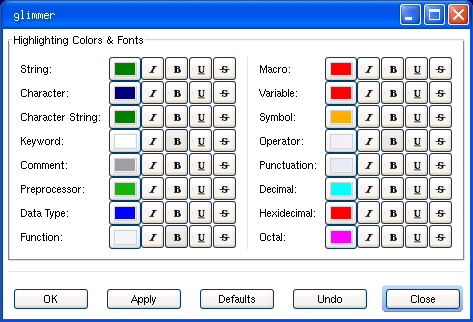
Pic 2.1b: editing highlight styles (click to enlarge)
As mentioned, Glimmer uses language definition files that reside in /usr/share/glimmer/languages by default. These files contain information on file mime types and their highlighting information, as distinguished by keywords and regular expressions to categorize code items. The Glimmer language definition files are notated using XML formatting:
<mime-types>
   <extension>xml</extension>
   <extension>xsl</extension>
   <extension>dtd</extension>
</mime-types>

<syntax-items>
   <syntax-item>
      <name>strings1</name>
      <start-regex>'</start-regex>
      <end-regex>\('\|\n\)</end-regex>
      <style>string</style>
   </syntax-item>
   <syntax-item>
      <name>comment</name>
      <start-regex><!--</start-regex>
      <end-regex>--></end-regex>
      <style>comment</style>
   </syntax-item>
</syntax-items>
This is just a small snippet from the XML language def file. On the first view it looks quite complicated, but believe me that handling most things on your own becomes quite easy when doing it more often. On the other hand you will do this only rarely, cos common used languages are within the standard.
2.2 compiler integration > top of page
If you are coding, it comes quite handy when you can test and run your stuff from within the editor. People using Emacs for example use shortcuts from their editor to compile their code or to debug it.
Of course Glimmer does not lack of such a feature. Glimmer uses three default function keys for:
| key combination | action |
|---|---|
| F5 | compile / build / process |
| Ctrl+F5 | debug |
| Shift+F5 | run / execute |
Information on what to execute depending on the specific file types resides in the language definition files but can be quickly modified in the properties dialog:
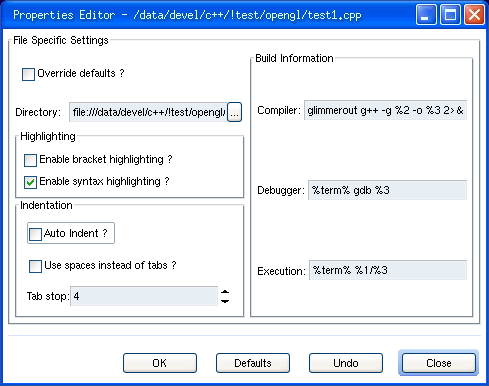
Pic 2.2a: execution properties (click to enlarge)
When executing or compiling, a new window opens showing the console output. Personally, i had two problems on this:
- Sometimes, i could not get applications to run or compile at all, even after tweaking options and adjusting path settings. But most probably i did not try enough or should upgrade to a more actual version (last at the time of this writing is of January 2002).
- When doing heavily compiling and debugging sessions, it is quite bad that the output is shown in an own window instead in an area of the main window. You always have to close that window manually by mouse or do it by shortcut - if it retains focus. Tools like Delphi / Kylix / JBuilder / C++ Builder or Anjuta are more professional in that way, but bound to one language more or less.
2.3 sessions > top of page
When you are working on different projects - e.g. websites, applications etc. - each of these projects normally involve several files. When using a very simple editor, you only have the "open file..." option. So you have to open every single file of a project each time you work on it. The next day, you continue and have to do the same again. Then you decide to work on another project and have to open its files step by step.
When working with "professional" development environments or editors, you have the concept of project files: a file storing information on files to open and specific preferences.
Glimmer has this too, called sessions. While writing this text with Glimmer, i am using the session file "NevepriseNet.session" - it has information on the current opened files (this article, XSL templates, Cascading Stylesheet, a perl-written makefile for generating the www pages etc.).
When i decide in a few minutes to go ahead with these lines another day, i just can close Glimmer and the next time i open Glimmer, it reopens all these files again without my interaction and i can continue my work. And when i then decide to work on our project Simple Disease? I just open its session file and all header and implementation files are presented for editing.
You might wonder why i have written this chapter at all, cos these session stuff is no new, but from my point of view it is a vital feature of an editor if you are working on several large projects.
With the version i am currently working with (1.1.12), Glimmer has some tiny bugs that infrequently appear with session management:
- it needs a very long time to read the session file - if at all
- the last file in the session cue is opened a several times in an almost-recursion
- after having quit a session by using "Close all" and you just any file without using any (new) session, the previous opened session is replaced with all current settings (although not indicated in the applications title bar)
But note that this bug may be obsolete, cos there are already some newer versions out.
2.4 script plugin > top of page
Although glimmer offers many text manipulation functions, you can dynamically add your own features without developing your own stuff and recompiling Glimmer. Glimmer offers Python bindings that can be used to extend Glimmer's capabilities from the outside.
By default, Glimmer comes with about nine scripts, for example:
- uppercase/lowercase (to change character's cases)
- replace tabs (with spaces)
- ISO2HTML (what is an ISO text?)
- delete to end/start (deletes text from cursor position)
- file selector (opens a filebox within the editor)
The magic is that these plugins are not just for text-modification/parsing but you can also add really any feature cos you really can extend the whole application as such. This is possible by providing GTK-Python bindings that also allow GUI extensions.
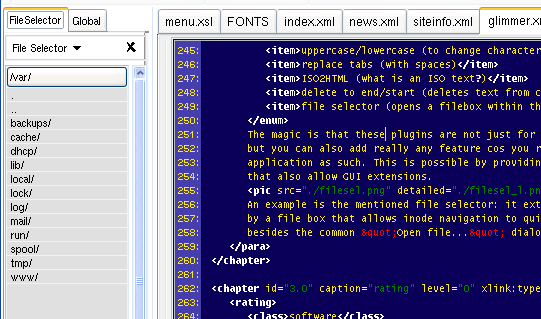
Pic 2.4a: the File Selector (left side) (click to enlarge)
An example is the mentioned file selector: it extends the main window by a file box that allows inode navigation to quickly open files besides the common "Open file..." dialog.
2.5 insertions > top of page
Glimmer offers a nice feature: insertions. It offers a way to directly insert special contents into the current document. This feature is not revolutionary but worth mention. Following some examples:
2.5.1 file insertion > top of page
If you want to insert a whole document into the current one, you normally would perhaps open the external document into an own pane and insert it via copy/paste - and then close the original document.
This is much simpler: use Glimmer's file inserter. It opens the common file open dialog and selects you the desired file that will be inserted at cursor's actual position - done.
2.5.2 colour insertion > top of page
When you develop GUI stuff or web stuff (e.g. HTML pages or style sheets) you often need colours. Basically, you often have these three ways of notation:
- predefined colour keyword, e.g. red, white, yellow
- RGB (sometimes YMCK) notation, where you note the red, green and blue colour components in decimal notation, e.g. 0,255,127 (r,g,b)
- RGB hexadecimal notation, e.g. #A9FF09
The hex notation is very common, no matter if in applications, HTML or themes. Important colours you know by yourself after some practice (white: #FFFFFF, black: #000000, light grey: #BBBBBB, yellow: #FFFF00 etc. etc.), but when you want colours without playing around, you normally take a graphx editor at hand to mix a colour.
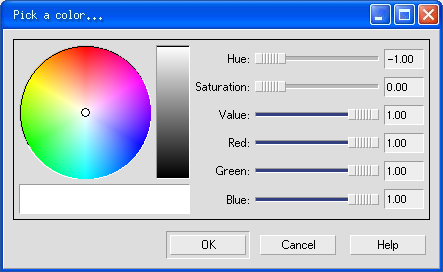
Pic 2.5.2a: colour insertion dialog (click to enlarge)
However, integration is often better and easier, thus you may simply call Glimmer's colour mixer dialog. You mix your colour and close the dialog. As a result, the hexadecimal colour value is inserted at the cursor's actual position including the preceeding dash (a common symbol for indicating a hex value).
2.5.3 ASCII character/value insertion > top of page
Well, in my earlier programming days i used to develop under DOS (argh!). Pascal was my language of choice and i only did ncurses-style console apps. Therefore one had to learn the ASCII character set almost complete, especially for drawing these frames around dialogs etc.
But still today, a developer quite often needs ASCII - directly by specifying them by value or by using macros dependent on language used. Instead of using the ASCII values, a perl developer uses these shortcuts:
| perl escape | name (#ascii-value) |
|---|---|
| \t | tab (#9) |
| \n | newline (#10) |
| \r | carriage return (#14) |
| \b | backspace (#12) |
| \e | escape (#27) |
However, if you need ASCII stuff, it is quite handy to have Glimmer's ASCII inserter. It offers a table with all standard ASCII symbols, like shown on the picture.
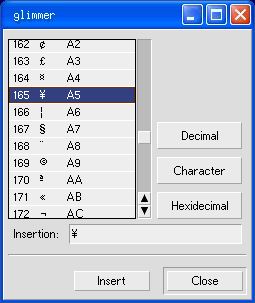
Pic 2.5.3a: ASCII insertion the easy way
The dialog shows a table with three columns:
- Column 1: decimal value
- Column 2: ASCII character
- Column 3: hexadecimal value
Using this list, you can select you ASCII character and choose one of the three buttons next to the list. These buttons specify the value you want to request: the decimal value, hexadecimal value or the character itself. After having selected a button, just hit "insert" and the requested information will be inserted at cursor's position.
2.5.4 shell output > top of page
Although it did not work in my version (i started Glimmer from console to watch STDERR error messages there were none), this feature is quite cool. You get a form where you can type a shell command - e.g. "lsof | grep 'lynx'" and the result from STDOUT is sent right into your editor pane.
Although one might use the normal console and do copy & paste, you may perhaps suffer from inserted line breaks and that, depending on the terminal emulator you use. Nevertheless, it is much more comfortable and more direct anyway.
2.5.5 common text > top of page
This is for the lazy ones of us (cool thus): Glimmer offers to insert also predefined texts and other snippets into your editor. The insertions are especially targeted for source code documentation (the meta stuff so to say). The standard insertions are:
- change log entry
- current date and time (a generated insertion thus)
- user name (login name)
- email address
- GNU General Public License (GPL, in various formats: C/C++ and in normal # comment style)
- GNU Lesser General Public License (LGPL, in various formats: C/C++ and in normal # comment style)
3.0 rating > top of page
All in one, Glimmer is a very nice and useful all-purpose editor, suitable for writing plain text docs or editing sources like C/C++/C#, Perl, Python, XML data or just anything you want due to the dynamical extensible highlighting interface and compiler (...or whatever) integration.
There is only one feature what i miss personally: kinda source code navigator where you have a list of e.g. functions that can be jumped to on item click. But - i know - in open source this is maybe a do-it-yourself thing for the future... who knows.
If you are heavily working with C/C++ (or C#), i additionally recommend the Anjuta editor (GTK app with GNOME bindings), it offers the source navigator, several wizzards (if needed) and more debugging capabilities. The counterpart for Glimmer for the KDE / Qt platform would be Kate.
When you prefer coding in the console, besides the well known editors vi and emacs, i would recommend to use the Midnight Commander's built-in editor mcedit which also supports syntax highlighting for common languages and data formats.
- Glimmer
- Category:
- software, editor
- Function:
- source code editor / IDE
- Version:
- 0.1.12
- By:
- Chris Phelps
- License:
- GPL
- Platforms:
- GNU platforms, e.g. GNU/Linux
- Features:
- multiple files editing
- syntax highlighting
- script plugins
- integration of compilers, debuggers etc.
- Pro:
- lightweight GTK application
- syntax highlighting support for approx. 26 languages and formats; more can be added easily
- scriptable plugins
- IDE-like integration of compilers etc.
- very customizable
- multi-purpose editor, not too bloated
- Contra:
- console output (e.g. from compiler) appears in own pop-window, this is quite unhandy; own area in main window preferred
- some compilers / interpreters did not work thru Glimmer (maybe config problem w/ paths etc.?)
- source code navigator would be appreciated (e.g. for jumping to procedures) - okay, this is no real contra...
- shell output did not work for me
- Rating:
- 8 / 10
- Comment:
- very useful editor, no matter if doing perl or HTML / XML
Copyleft (C)2002 by Timo "Blazko" Boewing. This document is licensed under the terms of the GPL.